Condominium operations

Resident guide

Resident guide: from first sign-in to the full routine in the app

A step-by-step walkthrough to sign in, pay dues, open tickets, join meetings and use every part of your building’s app — with a real screen for every stage.

  • 12 chapters
  • ~15 min read
  • For residents

Phase 1 — Getting started

Sign in to the resident portal

What you will do: Sign in with the account created by your manager or invite and pick your language.

  1. Open your building’s Domuno address in a browser — computer or phone.
  2. Use the language selector at the top: Português, Italiano, Deutsch or English.
  3. Enter your account email in the “Email” field and your password in “Password”.
  4. Press “Sign in”. Forgot your password? Use “Forgot password?” to reset it by email.

Tip

No account yet? Sign up through the link or QR code your manager shares in the building’s group — registration is self-service and the manager approves it.
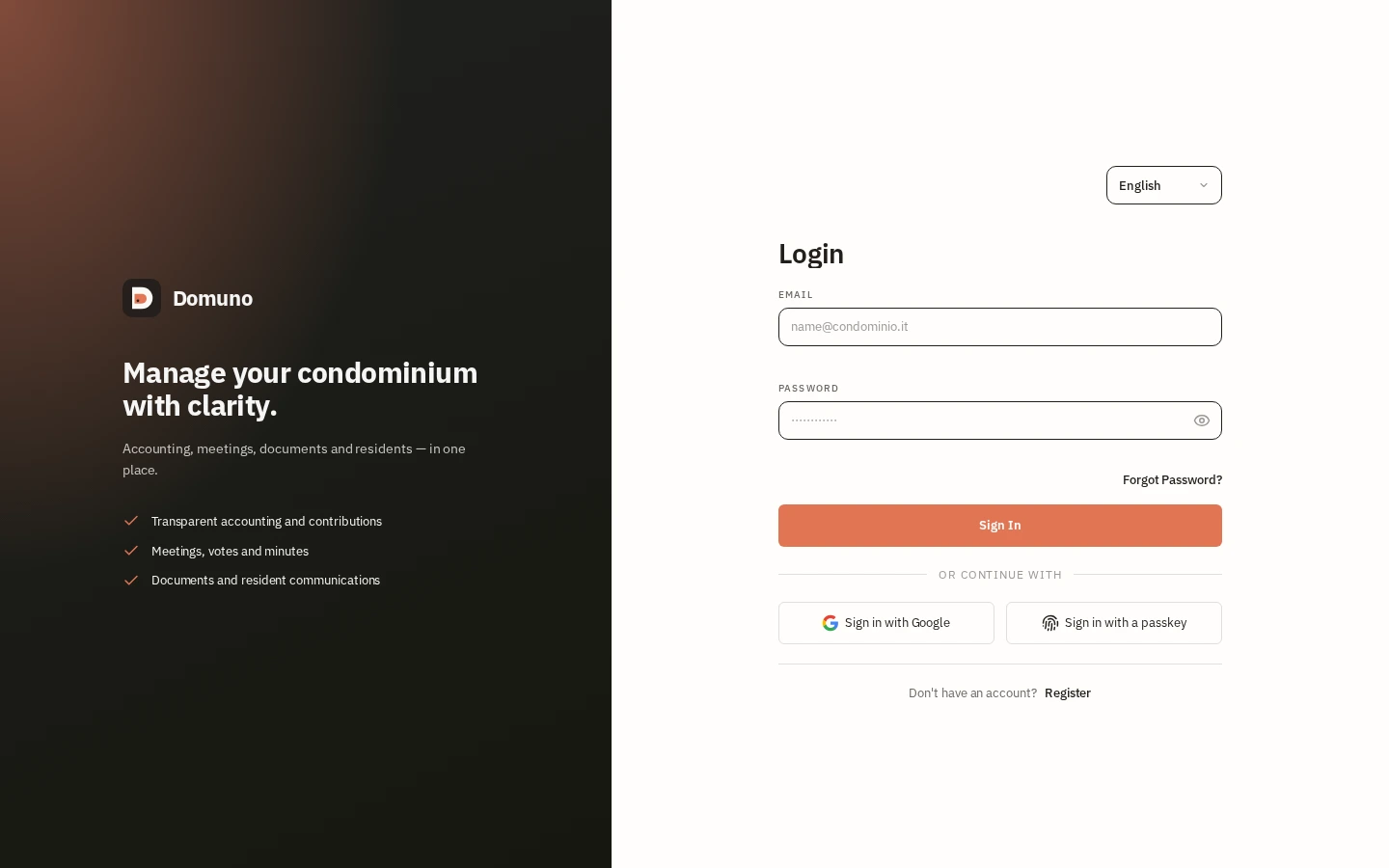
Login screen with language selector and email/password sign-in.
Next: Check your unit’s dashboard

Check your unit’s dashboard

What you will do: In one minute, see what needs your attention at home.

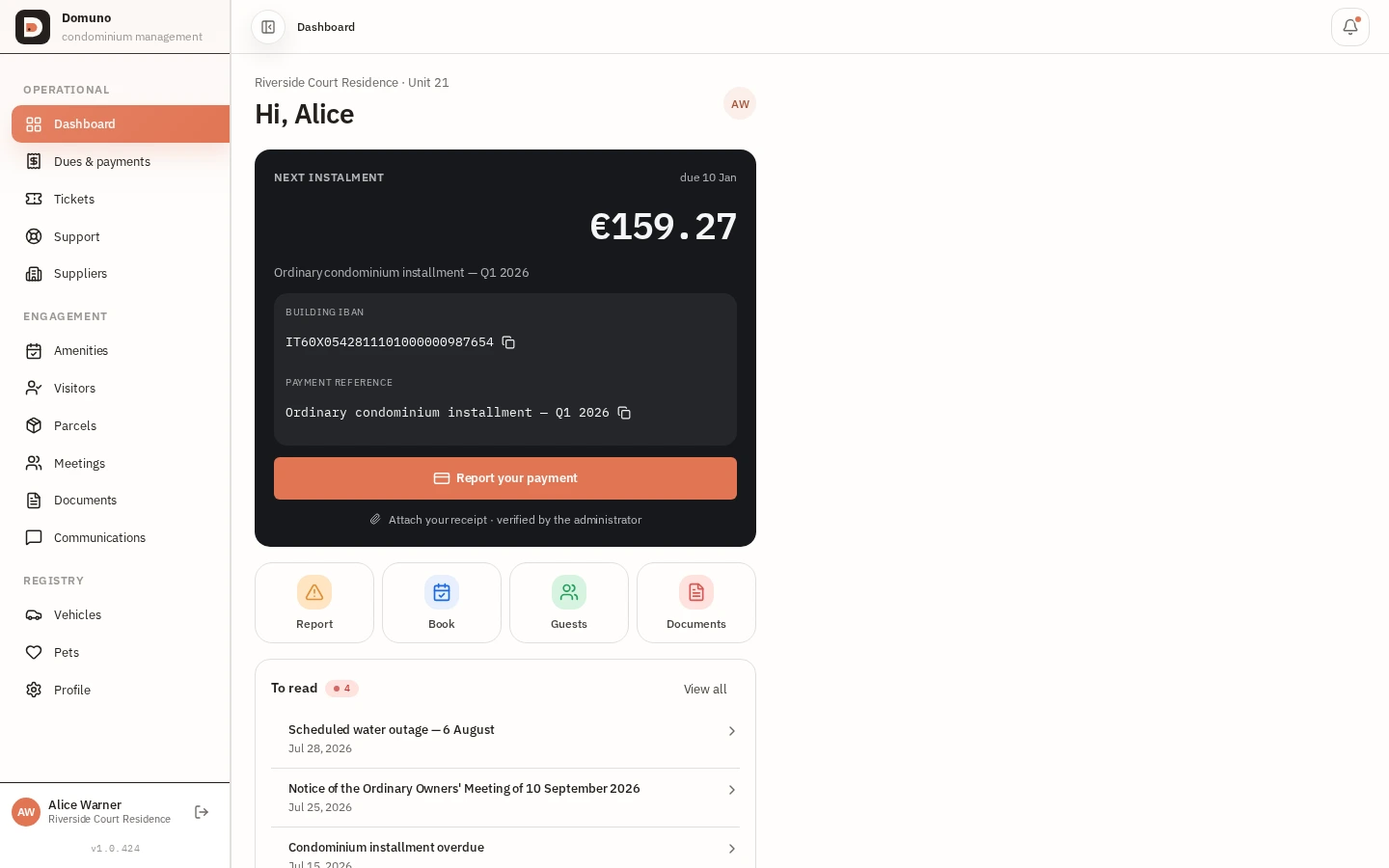
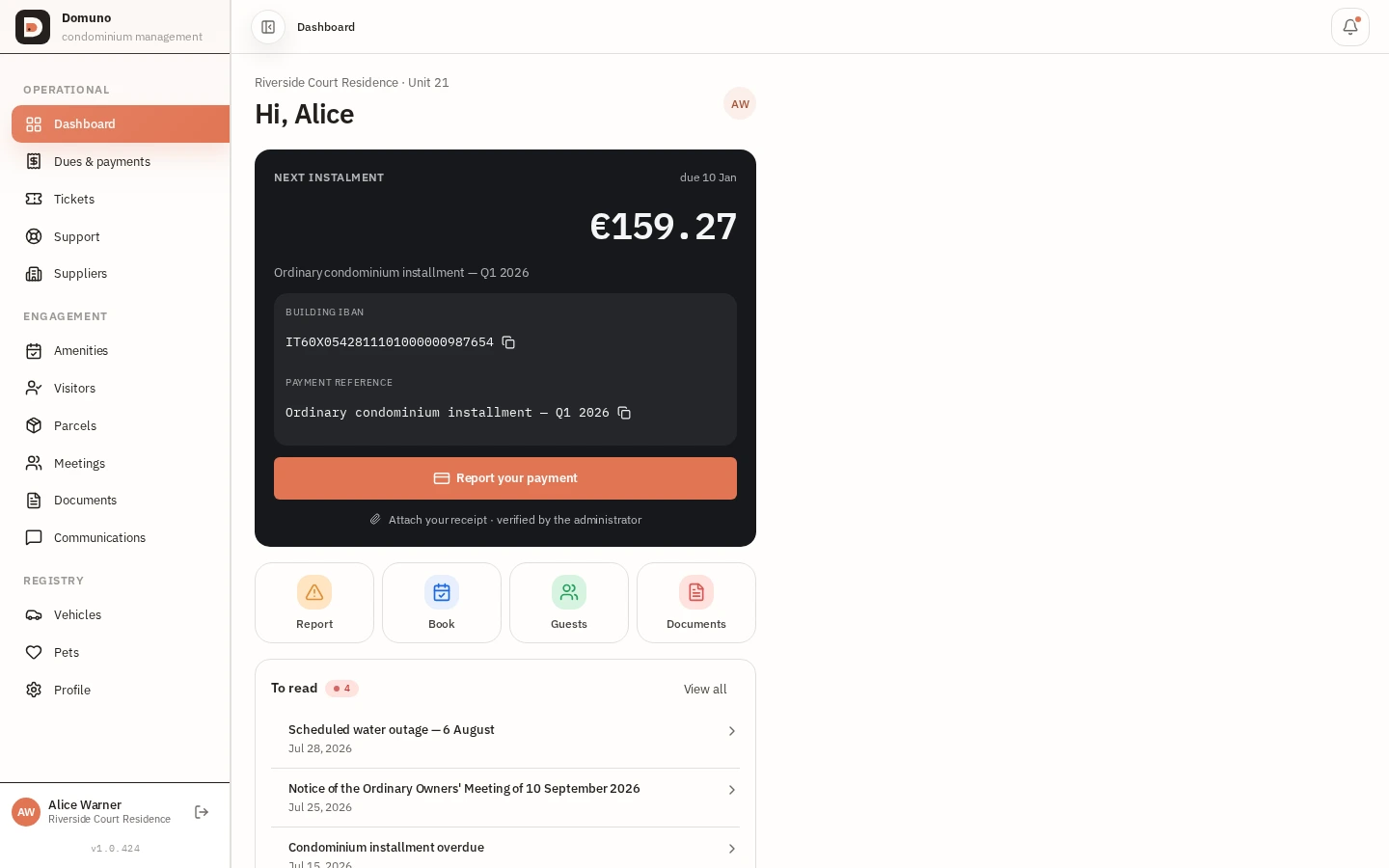
  1. After signing in you land on the Dashboard with a greeting and the unit linked to your account.
  2. The “Next instalment” card shows the amount, the due date and the payment details (IBAN or account).
  3. Use “Report your payment” to let the manager know you paid and attach the receipt for verification.
  4. The shortcuts “Report”, “Book”, “Guests” and “Documents” open the actions you use most.
  5. Under “To read”, follow notices and meeting calls — “View all” opens the full list.

Tip

The dashboard is the ideal starting point: anything that needs action (a charge, a notice, a meeting call) shows up here first.

Resident dashboard with next installment, shortcuts and unread notices.
Next: Track dues & payments

Track dues & payments

What you will do: Review due dates, balances and everything you have paid.

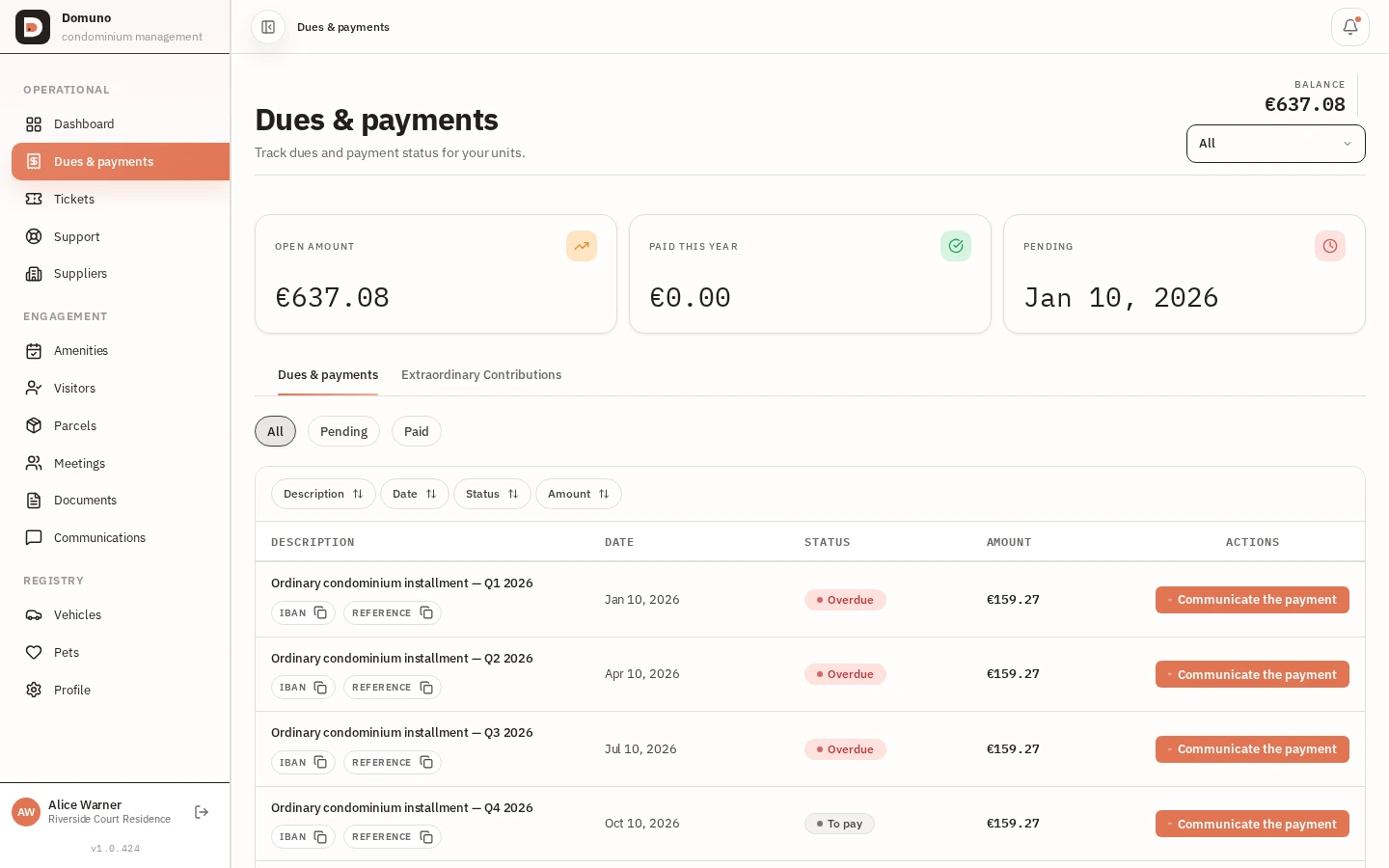
  1. In the sidebar open “Dues & payments”.
  2. The top cards summarize “Open amount”, “Paid this year” and the next due date.
  3. The list shows every installment with description, date, status (Paid / Pending) and amount.
  4. Use the “All / Pending / Paid” filters or sort by any column.
  5. To pay, open the installment and click “Communicate the payment” — IBAN and payment reference are ready to copy.

Payment reference

Copy the reference shown on the installment so the transfer matches without errors — then attach the receipt and the manager validates the record.

Dues & payments screen with summary, filters and installment history.
Next: Open maintenance tickets

Phase 2 — Day to day

Open maintenance tickets

What you will do: Request repairs and follow them through to resolution.

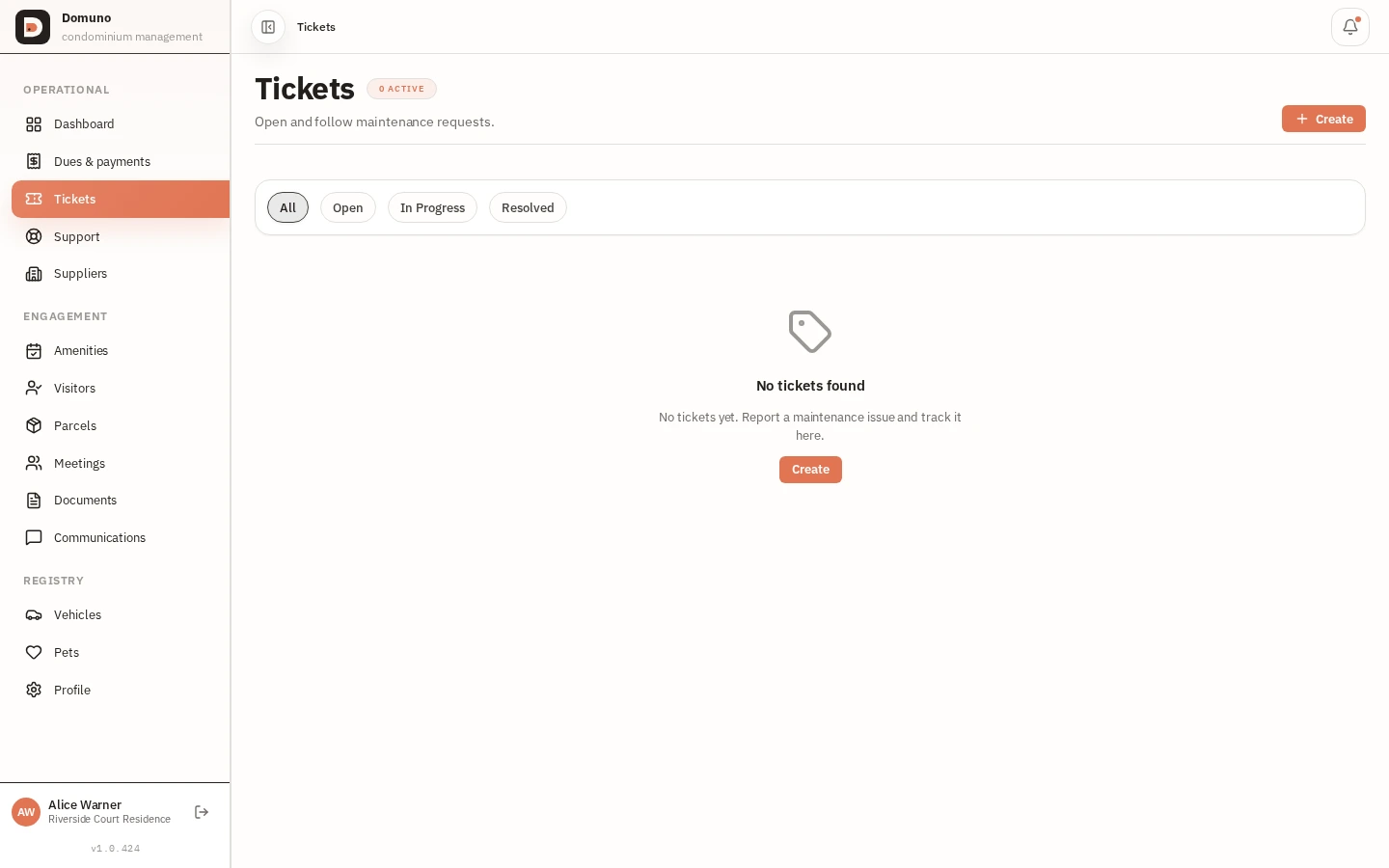
  1. In the sidebar open “Tickets”.
  2. Click “New ticket” and describe the problem in as much detail as you can.
  3. Pick the right category and priority — “Urgent” only for what truly can’t wait.
  4. Follow the status in the list: open, in progress, resolved.
  5. Use “Support” in the same menu for questions about the app itself.

Tip

Photos help: mention the location (e.g. 3rd-floor powder room) and the time the problem happened.

Resident ticket list with status and priority of each request.
Next: Log and collect parcels

Log and collect parcels

What you will do: No lost packages: every arrival and pickup stays on record.

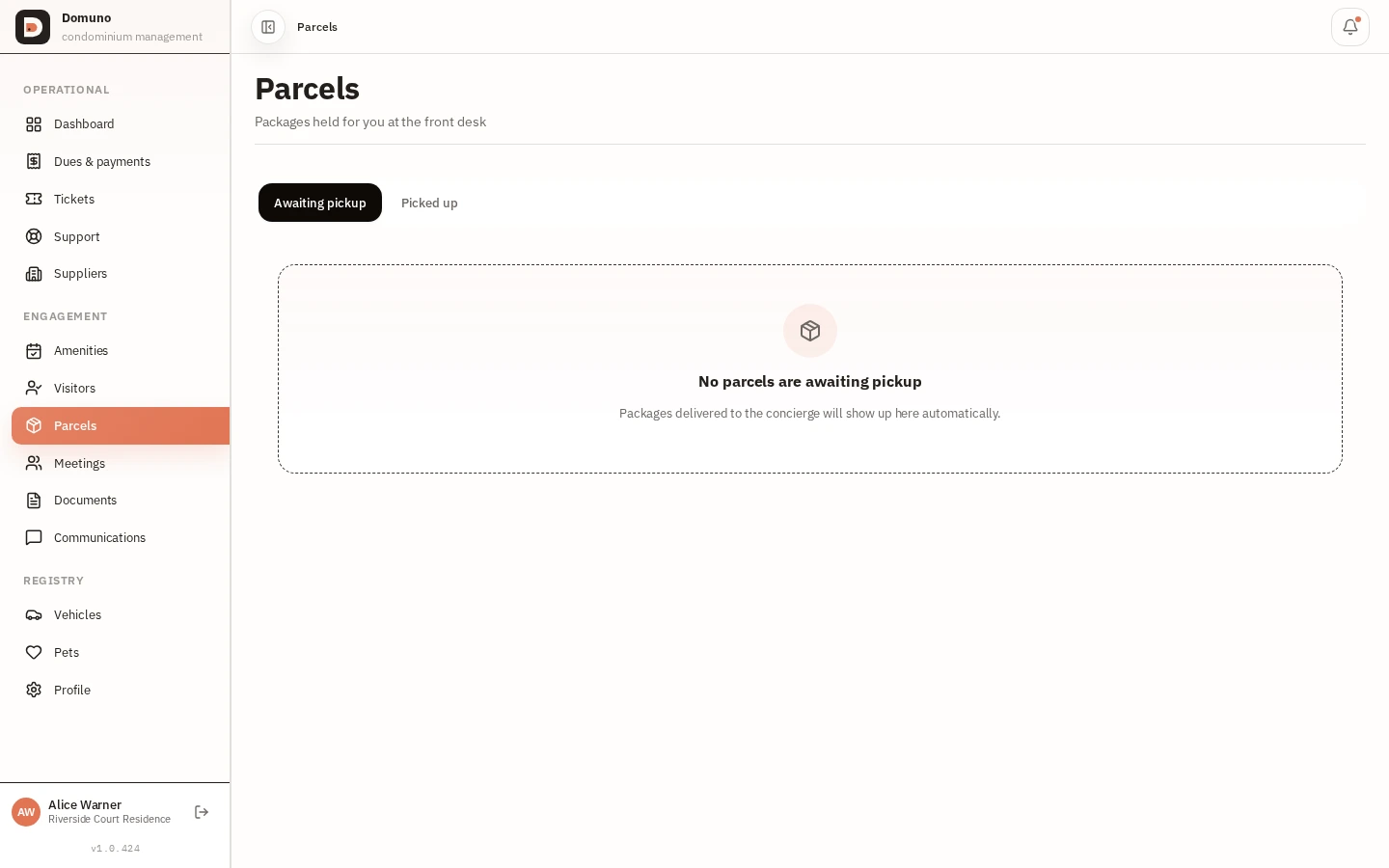
  1. In the “Engagement” menu open “Parcels”.
  2. When a package arrives, log it with the sender and tracking code.
  3. Follow the status: awaiting pickup, picked up, returned.
  4. Confirm pickup in the app — the history records who took what.
Parcel control with arrival and pickup status.
Next: Pre-authorize visitors

Pre-authorize visitors

What you will do: Smooth entry for guests, technicians and deliveries at the front desk.

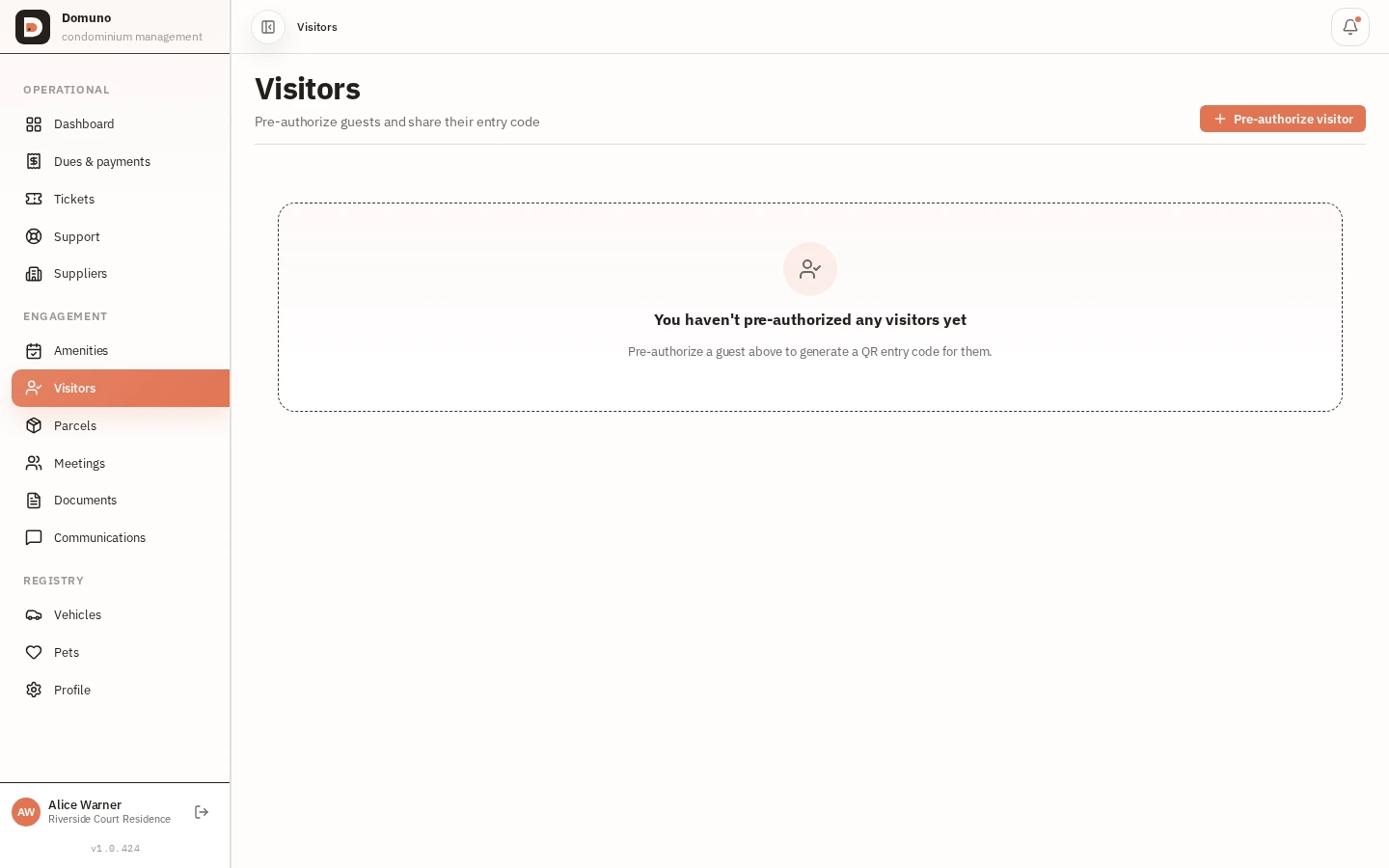
  1. In the “Engagement” menu open “Visitors”.
  2. Register the visitor with name, date and expected time window.
  3. The front desk sees the authorization and lets them in without friction.
  4. Review past visits any time to check who came by.
Visitor authorizations with date, time window and access status.
Next: Join meetings & e-voting

Join meetings & e-voting

What you will do: Read meeting calls, vote online and check the outcome.

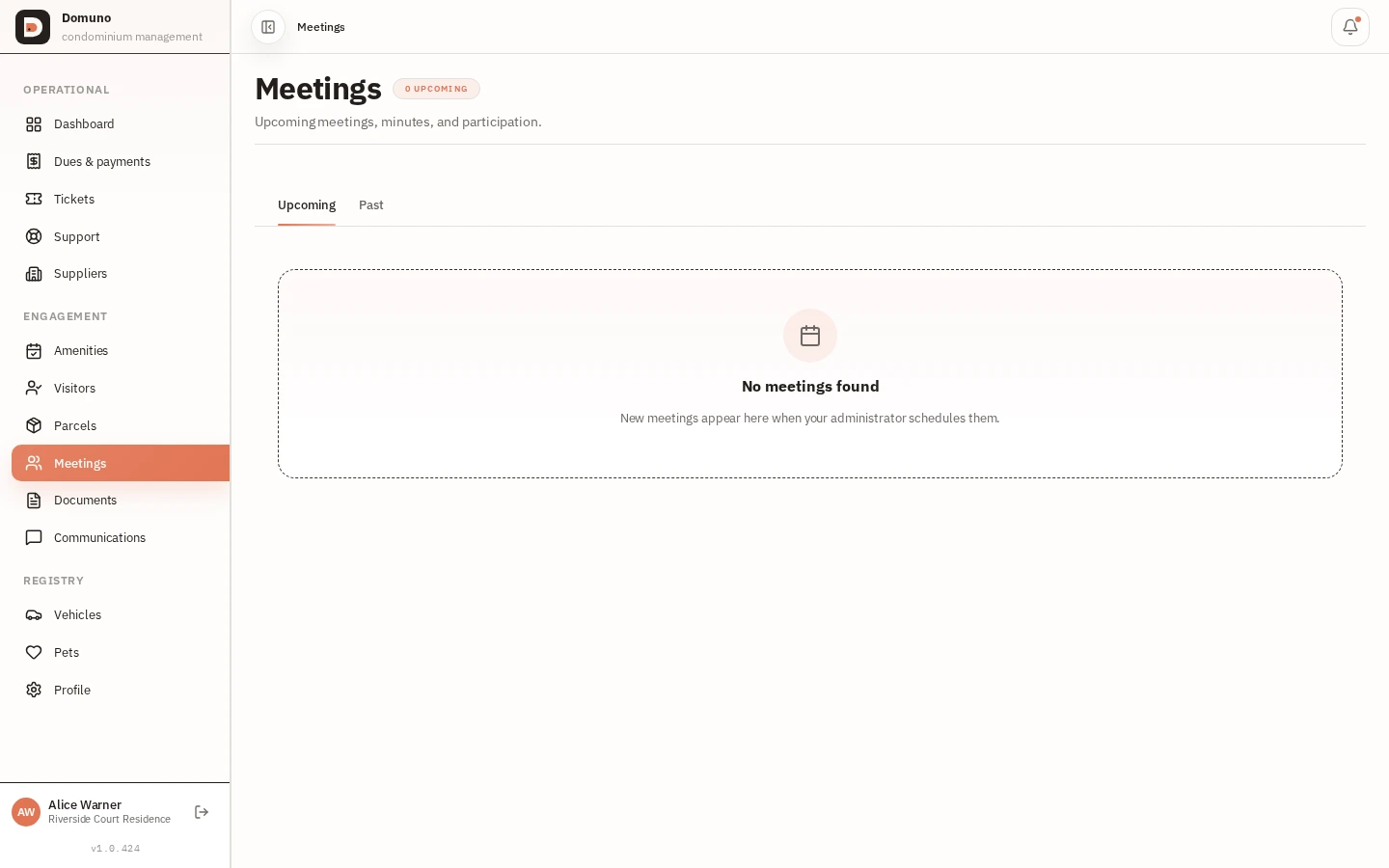
  1. In the “Engagement” menu open “Meetings”.
  2. Use the “Upcoming” and “Past” tabs to find a meeting, then open its card for details.
  3. Read the agenda and expected timing; preview or download shared materials under attachments.
  4. Respond that you will attend, may attend, or cannot attend. If needed, use “Delegate” to record a representative.
  5. When the meeting is live, join its room. Under “Polls”, choose an option while voting is open.
  6. Afterwards, review results, decisions and minutes published on the meeting page.

Tip

Meeting calls and outcomes also arrive under “Communications” — check notices regularly.

Resident meeting list with type, date and status.
Next: Browse building documents

Browse building documents

What you will do: Bylaws, minutes and notices shared with residents, always at hand.

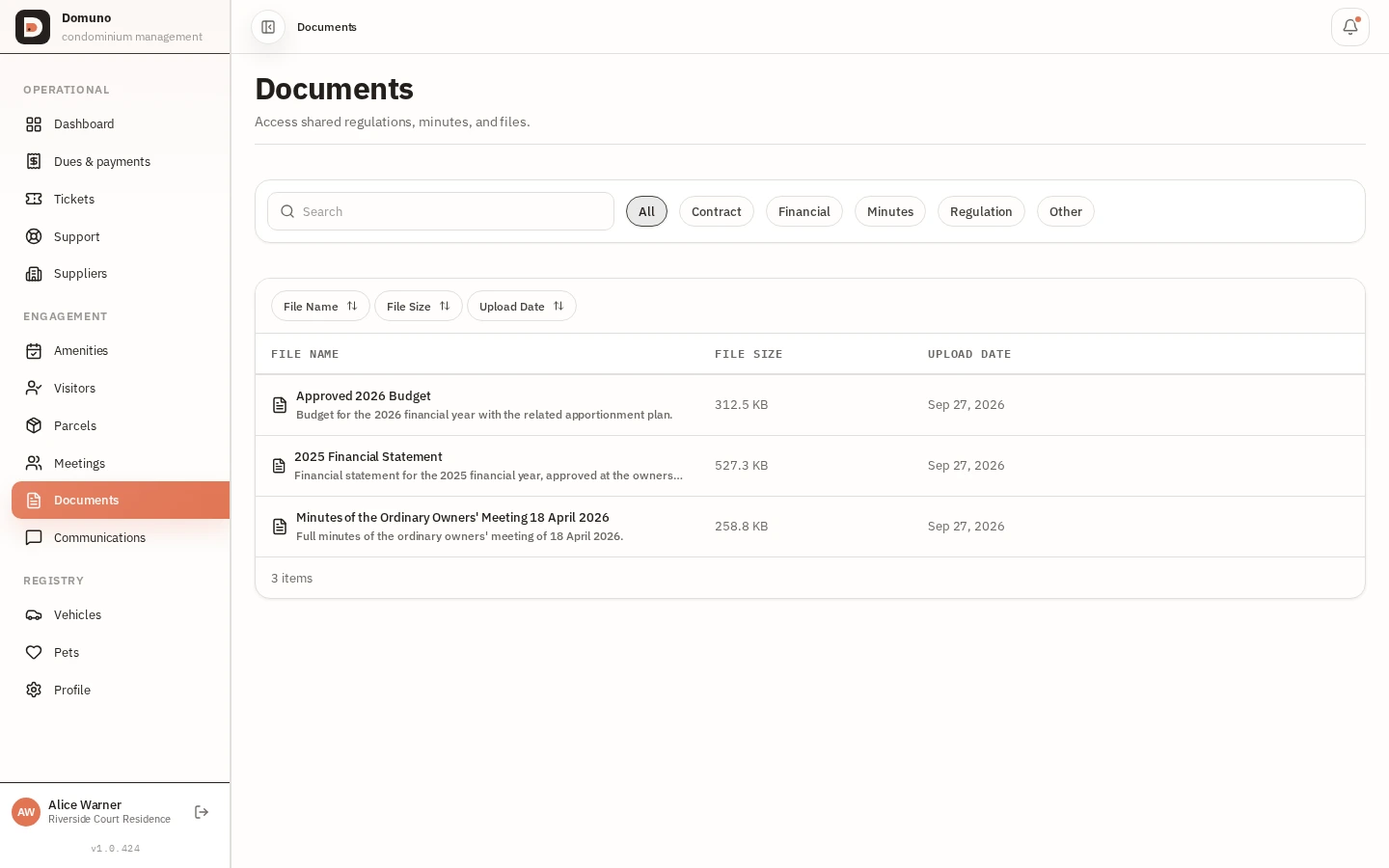
  1. In the “Engagement” menu open “Documents”.
  2. Find the files your manager shared with residents.
  3. Use search or categories to reach the bylaw, minutes or contract quickly.
  4. Open the file to read it or download it on your phone.
Documents shared by the manager with category and date.
Next: Follow notices & communications

Follow notices & communications

What you will do: Never miss water shutoffs, assemblies or important notices.

  1. In the sidebar open “Communications”.
  2. Building notices stay in a list, newest first.
  3. Tap a notice to read the full text.
  4. Track unread items with the counter at the top of the dashboard.
Communications hub with building notices and read status.
Next: Book common areas

Phase 3 — Services & preferences

Book common areas

What you will do: BBQ, party room or court: booking takes a few taps.

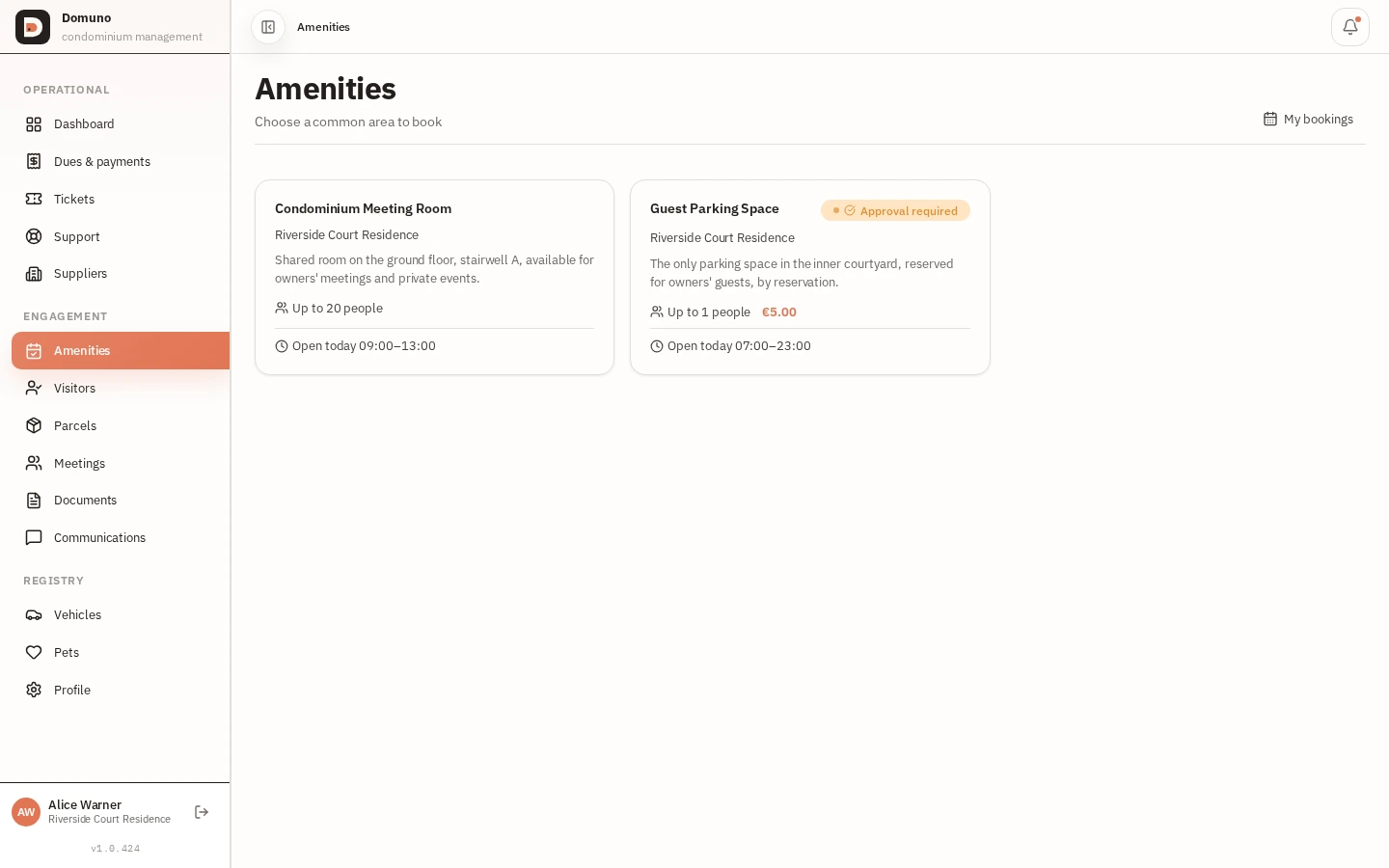
  1. In the “Engagement” menu open “Amenities”.
  2. Pick an available area and read its rules and any fees.
  3. Select date and time and confirm the booking.
  4. Track your bookings under “My bookings” and cancel if plans change.

Tip

Active bookings per unit are capped — cancel what you won’t use so neighbours can book it.

Common areas available to book with rules and status.
Next: Manage your profile & registry

Manage your profile & registry

What you will do: Keep your details, vehicles and pets up to date.

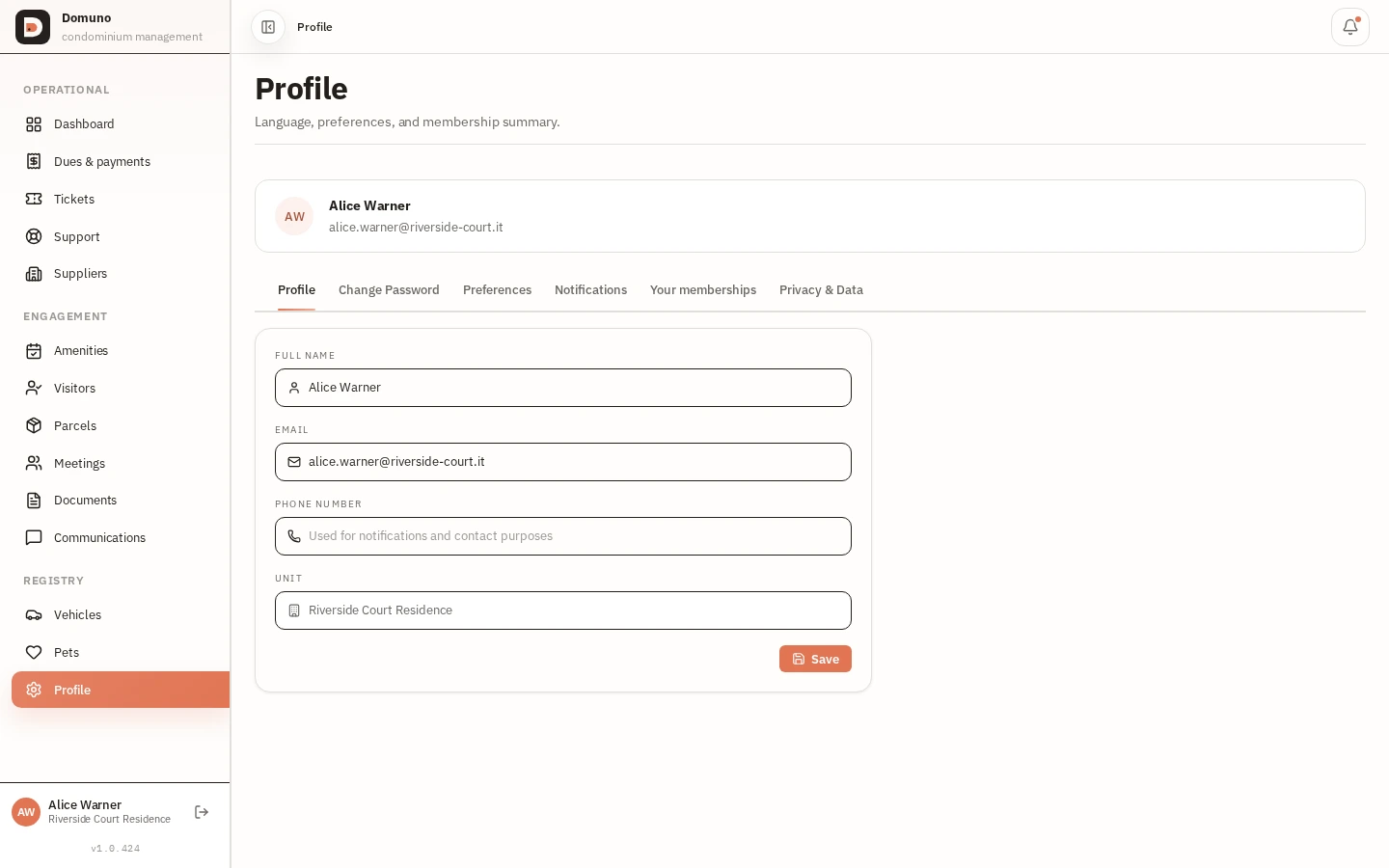
  1. In the “Registry” menu open “Profile”.
  2. Update phone and account preferences; change your password when needed.
  3. Under “Vehicles” register your car with plate and parking spot for garage access.
  4. Under “Pets” register your apartment’s animals — useful for the front desk and building rules.
Resident profile with account details and access to vehicles and pets.
Next: Use it on mobile

Use it on mobile

What you will do: The whole portal fits in your pocket — nothing to install.

  1. Open Domuno from your phone browser and sign in to your account.
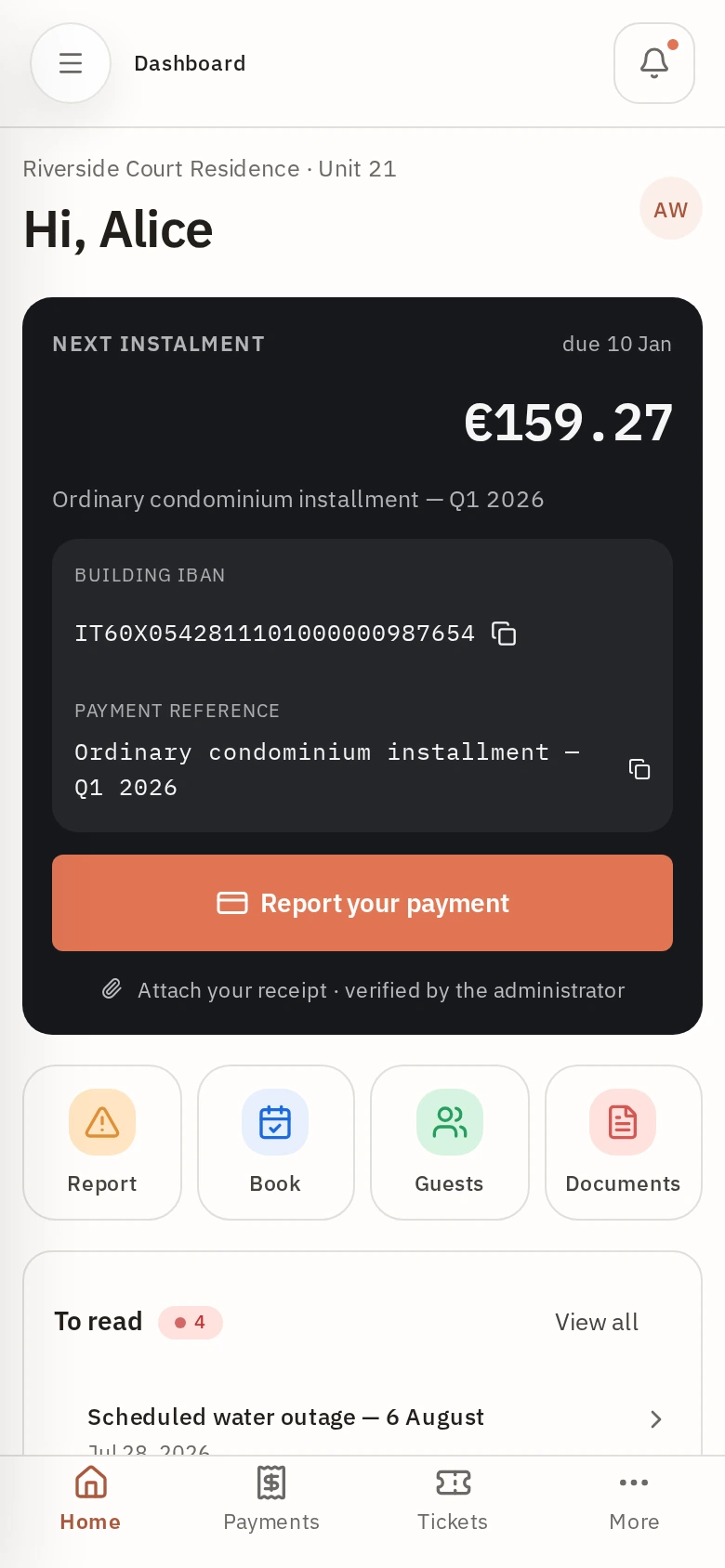
  2. On the home screen the next-installment card and shortcuts are one tap away.
  3. The bottom bar goes straight to Dashboard, Dues & payments and Tickets.
  4. Tap “More” to open the rest of the menu: visitors, parcels, meetings and profile.
Resident dashboard on smartphone with the bottom navigation bar.

Ready to use your building’s app?

Sign in with your account and follow the guide at your own pace. Nothing to install.

Sign in to my account